


Làm thế nào để bắt đầu livestream qua trình duyệt web?
Nếu bạn đang thử livestream lần đầu tiên hoặc đơn giản là muốn tránh các thiết lập phần mềm phức tạp, livestream dựa trên web là một trong những lựa chọn dễ nhất. Không cần tải xuống — chỉ cần mở trình duyệt máy tính của bạn và livestream ngay lập tức. Tính năng này dễ sử dụng, thiết lập nhanh chóng và cung cấp độ trễ thấp với hiệu suất ổn định.
Dưới đây là quy trình livestream hoàn chỉnh, hướng dẫn bạn từng bước từ việc chuẩn bị đến livestream, tất cả trong một quy trình suôn sẻ.
- Gửi đơn đăng ký livestream
Đầu tiên, gửi đơn đăng ký livestream. Chọn [Máy tính] làm thiết bị livestream. Hệ thống sẽ mặc định là [Livestream qua web]. - Vào phòng livestream
Sau khi đơn đăng ký được chấp thuận, hãy vào [Hồ sơ livestream] và nhấp vào ảnh bìa livestream để vào phòng livestream trực tiếp. - Bắt đầu livestream và ủy quyền thiết bị
Nhấp vào [Bắt đầu livestream]. Đối với phiên livestream của bạn, hệ thống sẽ yêu cầu quyền truy cập micrô. Khi được nhắc, nhấp vào [Cho phép]. - Định cấu hình và livestream
Khi ở trang livestream, hãy bật [Micrô] (hỗ trợ micrô tích hợp hoặc micrô bên ngoài). Sử dụng [Chia sẻ màn hình] để chọn cửa sổ trình duyệt hoặc toàn bộ màn hình của bạn. Sau đó, bạn có thể bắt đầu livestream và thuyết trình bình thường. - Kết thúc livestream và xử lý ngoại lệ
Nút [Kết thúc livestream] nằm ở ngoài cùng bên phải của trang livestream. Để ngăn chặn các hành động ngẫu nhiên, việc kết thúc một phiên livestream cần xác nhận lần thứ hai.
Nếu livestream bị gián đoạn do sự cố mạng, bạn có thể vào lại phòng livestream và tiếp tục livestream trong vòng 10 phút mà không cần gửi đơn đăng ký mới.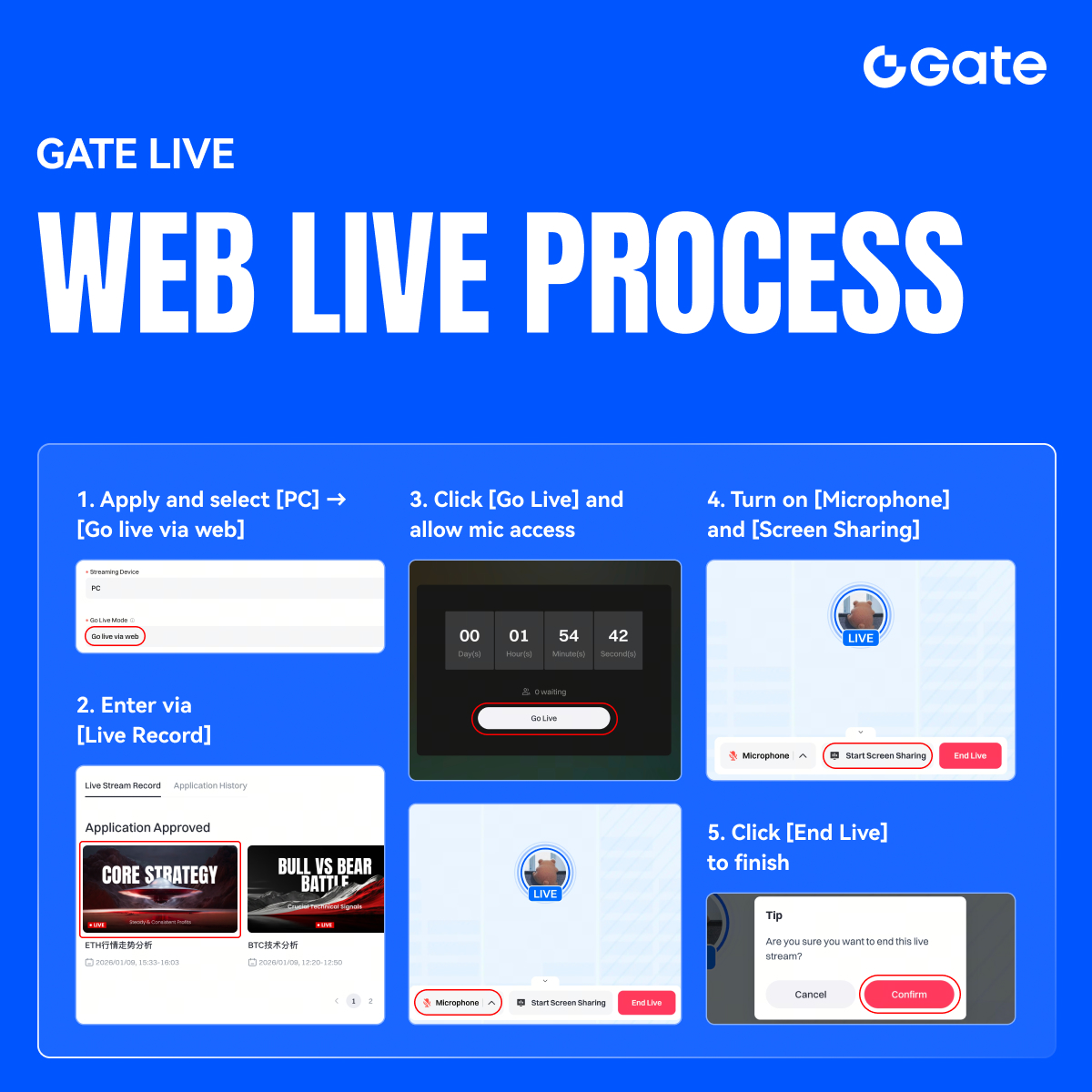
Nội dung được cung cấp ở đây chỉ mang tính chất tham khảo và cung cấp kiến thức, không cấu thành bất kỳ lời khuyên tài chính, đầu tư, giao dịch hoặc pháp lý nào, cũng như không phải là lời đề nghị hoặc lời mời mua hoặc bán bất kỳ tài sản kỹ thuật số nào. Gate không đưa ra bất kỳ tuyên bố hoặc bảo đảm nào, dù rõ ràng hay ngụ ý, về tính chính xác, đầy đủ hoặc kịp thời của thông tin được cung cấp ở đây. Các tính năng sản phẩm, giao diện, quy tắc và cấu trúc phí có thể được cập nhật hoặc điều chỉnh bất cứ lúc nào. Vui lòng tham khảo các thông báo mới nhất và thông tin thực tế được hiển thị trên nền tảng Gate để biết chi tiết chính xác nhất.
Đầu tư vào tài sản kỹ thuật số tiềm ẩn rủi ro đáng kể và giá cả có thể biến động mạnh. Bạn có thể mất toàn bộ số tiền đầu tư. Vui lòng đưa ra quyết định thận trọng dựa trên tình hình tài chính và khả năng chấp nhận rủi ro của riêng bạn sau khi hiểu đầy đủ các rủi ro liên quan. Nếu cần, bạn nên tham khảo ý kiến của cố vấn tài chính hoặc pháp lý chuyên nghiệp độc lập.
Để biết thêm thông tin về các rủi ro tiềm ẩn, vui lòng tham khảo Tuyên bố về Rủi ro và Thỏa thuận Người dùng của Gate.
