


I. Feature Overview
Auto Withdrawal allows users to set predefined withdrawal conditions, enabling the system to automatically process on-chain withdrawals when the conditions are met.
II.How to Use
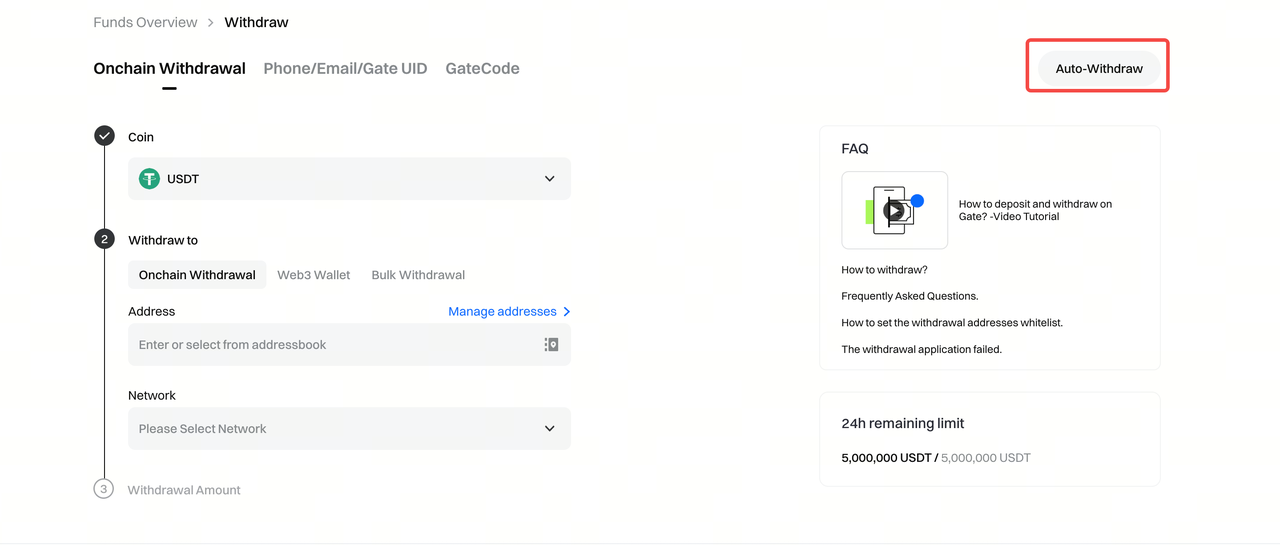
1. Feature Access
On the web platform, go to the withdrawal page. You can access the [Auto-Withdraw] feature from the upper-right corner of the page, as shown in the illustration.
2. Create an Auto Withdrawal Task
Important Notes
1. Currently, only trusted addresses saved in the Address Book are supported. Please configure eligible withdrawal addresses in advance before using this feature.
2. Only one auto withdrawal task per asset is allowed. You may adjust the strategy as needed.
3. Multiple tasks can be created, with a maximum of 10 tasks in total.
4. If a withdrawal fails due to insufficient balance during execution, only that specific withdrawal will be skipped. The system will recheck the balance when the next execution is triggered.
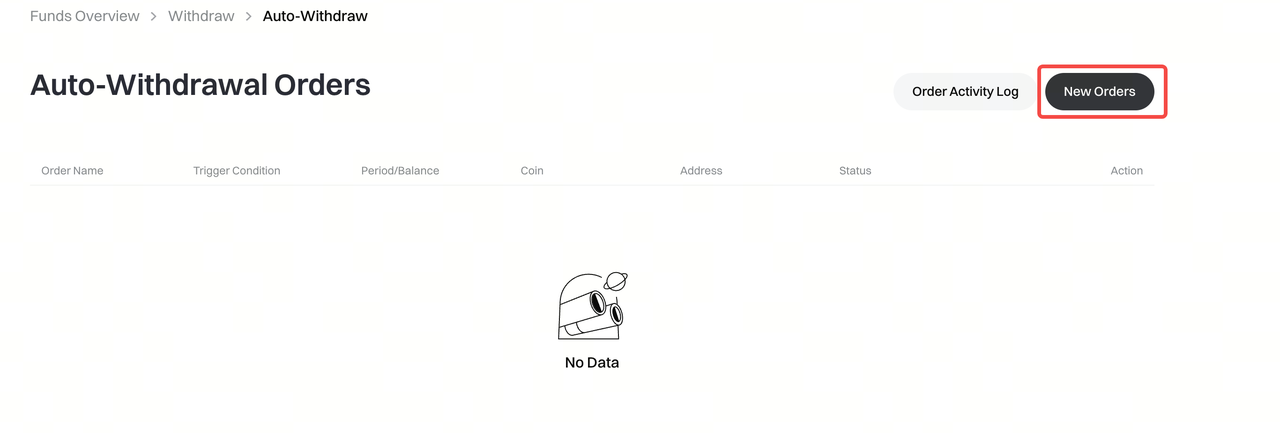
2.1 Create a New Task
After entering the Auto Withdrawal page, click [New Orders] to create a new auto withdrawal task.
2.2 Select Auto Withdrawal Mode
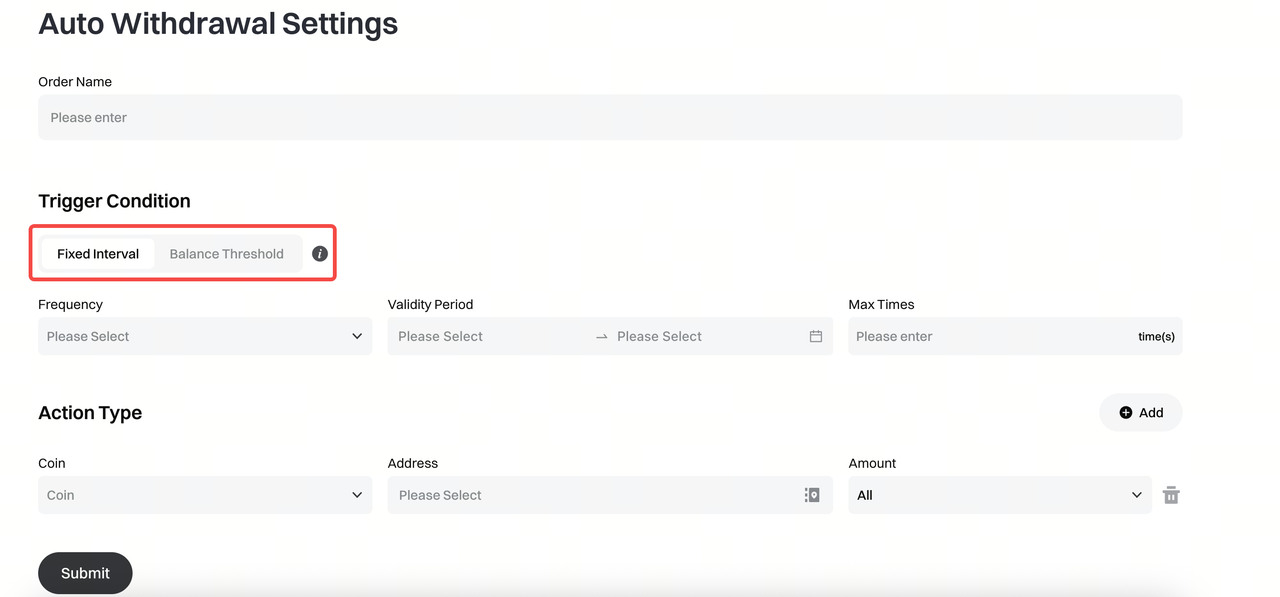
You can configure auto withdrawals by selecting one of the following trigger modes. When the specified conditions are met, the system will automatically execute a withdrawal to the designated address for the selected asset.
Field Descriptions
Fixed Interval: Sets up automatic withdrawals at regular intervals within a specified time range.
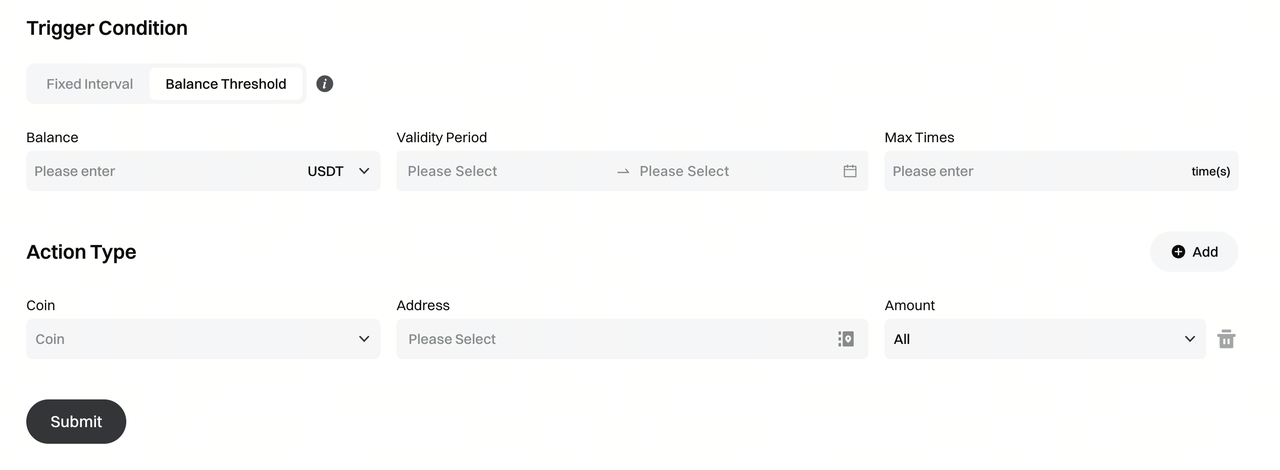
Balance Threshold: Automatically withdraws a preset amount once the asset balance reaches the specified threshold.
Trigger Condition: Conditions that must be met to trigger an auto withdrawal.
Action Type: Automatically withdraws the selected asset to the corresponding address once the trigger conditions are met.
**2.2.1 Fixed Interval Mode
Trigger Conditions
- Frequency: Executes the task at a specified time interval.
- Validity Period: Defines the time range during which the task is active.
- Max Times: The maximum number of times the task can be executed within the validity period.
Action Types
- Coin: Select the asset to be withdrawn.
- Address: Select the corresponding trusted address for the asset.
- Amount: All: Withdraws the entire available balance of the asset. Fixed Amount: Withdraws a specified amount.
If the balance is insufficient, the withdrawal will be skipped and retried at the next execution.
2.2.2 Balance Threshold Mode
Trigger Conditions**
- Balance Threshold: Triggers the withdrawal when the asset balance reaches the specified amount.
- Validity Period: Defines the time range during which the task is active.
- Max Times: The maximum number of times the task can be executed within the validity period.
- Validity Period: Defines the time range during which the task is active.
- Max Times: The maximum number of times the task can be executed within the validity period.
Action Types
-
- Coin: Select the asset to be withdrawn.
- Address: Select the corresponding trusted address for the asset.
- Amount: All: Withdraws the entire available balance of the asset. Fixed Amount: Withdraws a specified amount.
If the balance is insufficient, the withdrawal will be skipped and retried at the next execution. - Coin: Select the asset to be withdrawn.
- Address: Select the corresponding trusted address for the asset.
- Amount: All: Withdraws the entire available balance of the asset. Fixed Amount: Withdraws a specified amount.
If the balance is insufficient, the withdrawal will be skipped and retried at the next execution.
2.3 Activate a Task
- After a task is created, it can have one of the following statuses: Pending, In Progress, or Finished.
- Click [Run] to activate the task. Once activated, the system will execute the task automatically based on the configured conditions. Email notifications will be sent for both task status updates and withdrawal orders.

#### 2.4 View Task Information
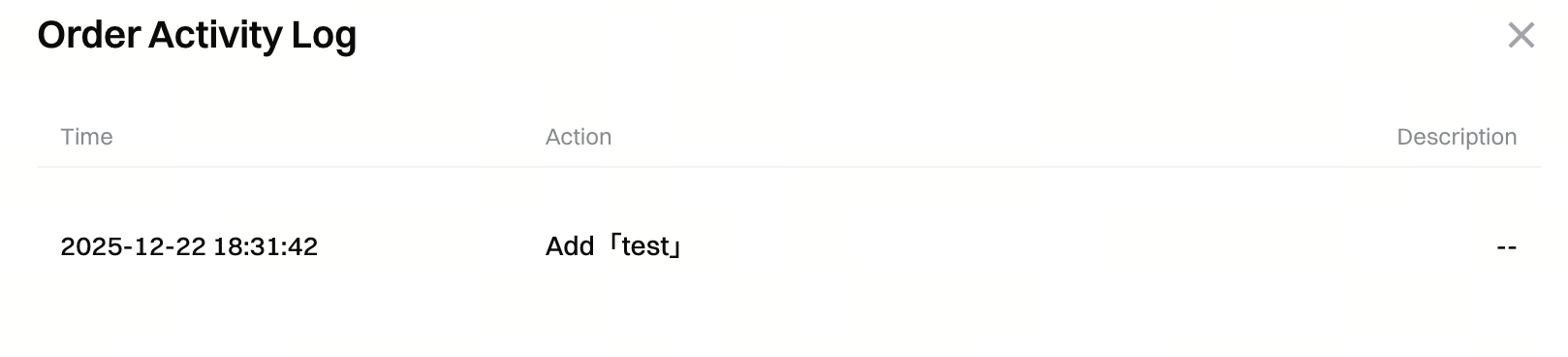
2.4.1 Operation Records
View the history of actions for each task, including creation, modification, and deletion.
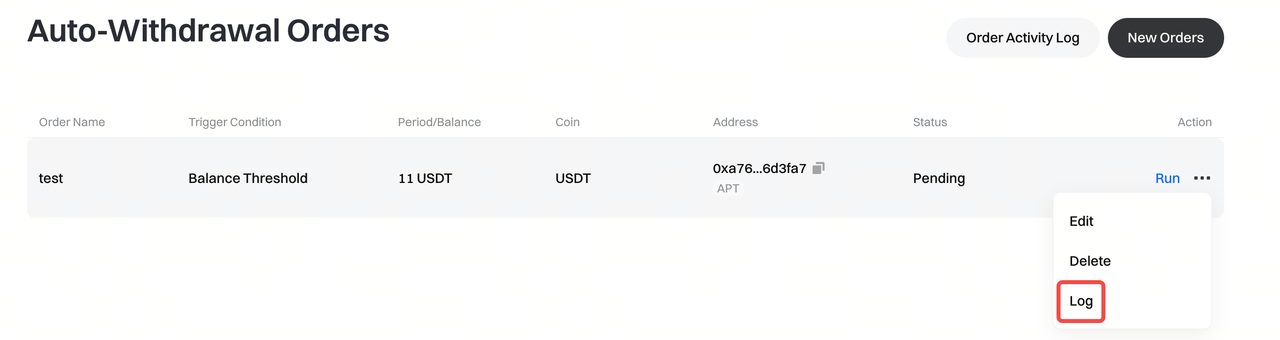
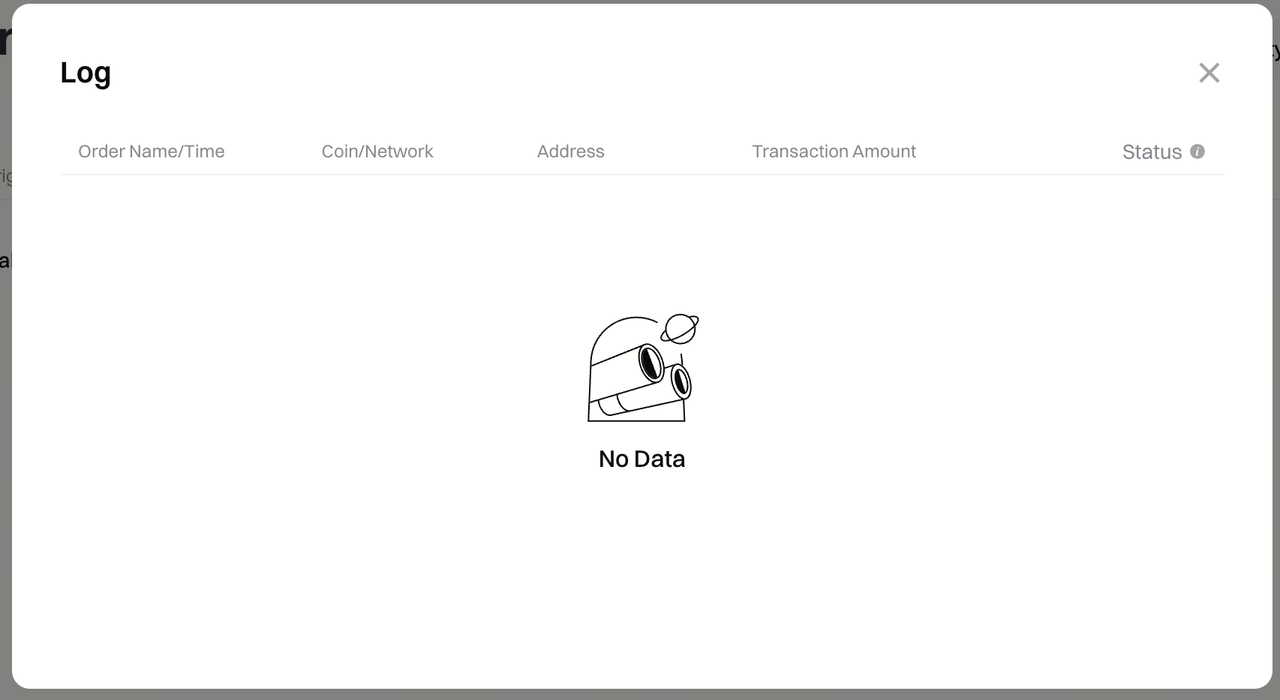
2.4.2 Execution Logs
View the execution logs of a specific auto withdrawal task to track the status of each withdrawal. If a withdrawal is blocked due to risk control, limits, or other restrictions, the associated auto withdrawal task will be automatically suspended.
III. Additional Notes
Editing Tasks: Modifying a task (such as changing the withdrawal address) requires security verification.
Withdrawal Orders: Completed withdrawal orders can be viewed in the Withdrawal History.
Email Notifications: Both task-related and order-related email notifications will be sent. Please monitor your inbox to ensure timely action when needed.
Disclaimer
The content provided herein is for reference and educational purposes only and does not constitute any financial, investment, trading, or legal advice, nor does it constitute an offer or solicitation to buy or sell any digital assets. Gate makes no express or implied representations or warranties regarding the accuracy, completeness, or timeliness of the information contained herein. Product features, interfaces, rules, and fee structures may be updated or adjusted at any time. Please refer to the latest announcements and the actual information displayed on the Gate platform for the most accurate details.
Digital asset investments involve significant risk, and prices may fluctuate substantially. You may lose the entire amount of your investment. Please make decisions cautiously based on your own financial situation and risk tolerance after fully understanding the associated risks. If necessary, you are advised to consult an independent professional financial or legal advisor.
For more information about potential risks, please refer to Gate's Risk Disclosure and User Agreement.
